Getting Your School App on iOS: The Complete iPhone Setup Guide
Enable real-time communication for Apple users. Learn how to securely add the custom DigiSchool app to your iPhone home screen, activate lockscreen push notifications, and access teacher-parent portals in seconds.
Simarpreet Singh
Blog Author
Elevating School Communication for iOS Users
In today’s fast-paced educational environment, keeping parents, teachers, and students on the same page is a constant challenge. Paper notices get misplaced, emails sit unread, and critical announcements can easily get lost in chaotic group chats.
To bridge this gap, DigiSchool provides a fully integrated mobile application experience tailored specifically for your institution. Designed to look and feel like a native iOS application, it brings your school’s unique logo and identity directly onto the iPhones of your entire community. By installing it on their home screens, parents and students enjoy a high-performance experience, receiving automatic updates without the friction of browsing URLs or downloading heavy apps.
Let’s dive into how you can set up and run this modern communication tool on iOS in just a few taps.
Getting Started: The Prerequisites
Before sharing the installation steps with your school community, ensure your school platform is fully configured. Your institution must have an active DigiSchool setup along with a custom domain to enable secure application delivery.
If you are new to the platform or need to get your website online first, check out our initial setup guide:
👉 How to Get a Free Website for Your School with DigiSchool
Once your custom web portal is live, the native app installation option will immediately be available to anyone visiting your site from an iPhone.
System Compatibility: The app requires iOS 16.4 or later to take full advantage of background push notifications and standalone full-screen view. The installation process works seamlessly using your preferred mobile browser.
Step 1: Launch Your Web Browser and Locate the Share Sheet
Start by opening your school’s unique website URL within your preferred mobile browser (such as Safari, Chrome, or Firefox) on your iPhone. Once the homepage is fully loaded, look at the bottom browser navigation bar (or top menu depending on your browser layout).
Tap the Share button (the icon representing a square with an upward-pointing arrow). This action launches the system Share Sheet, containing all sharing and layout customization options.
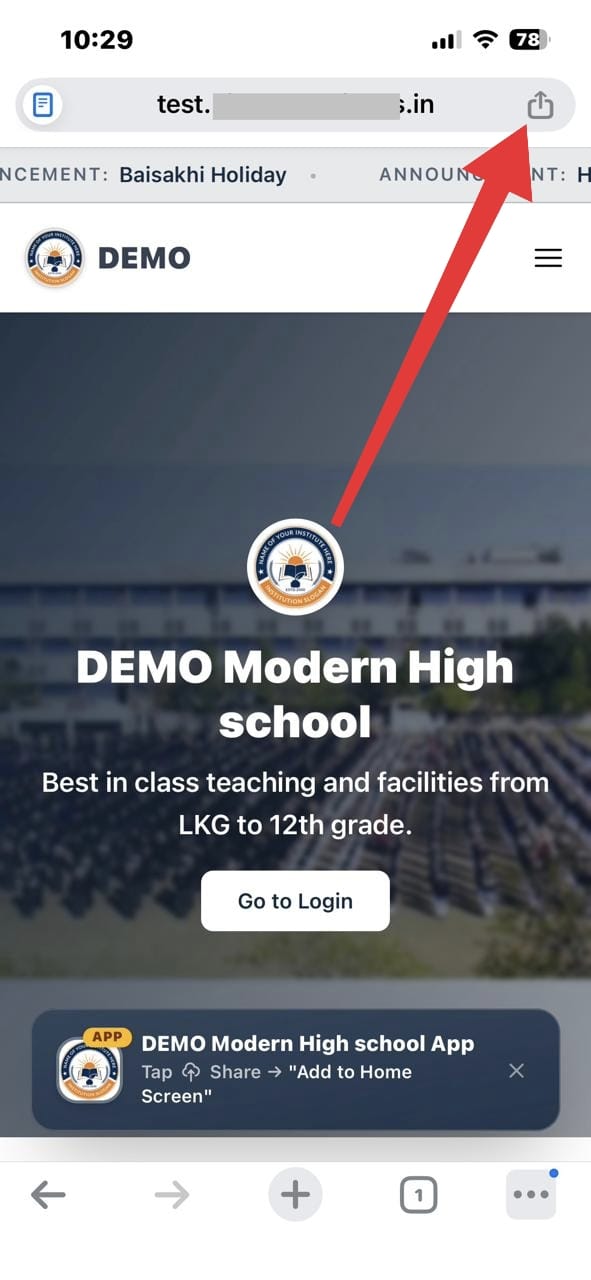
School website open on iPhone with the Share button highlighted
Step 2: Selecting ‘Add to Home Screen’ from Browser Options
Once the Share Sheet pops up, scroll down through the list of system options. Find and tap the option labeled “Add to Home Screen” (accompanied by a plus sign icon).
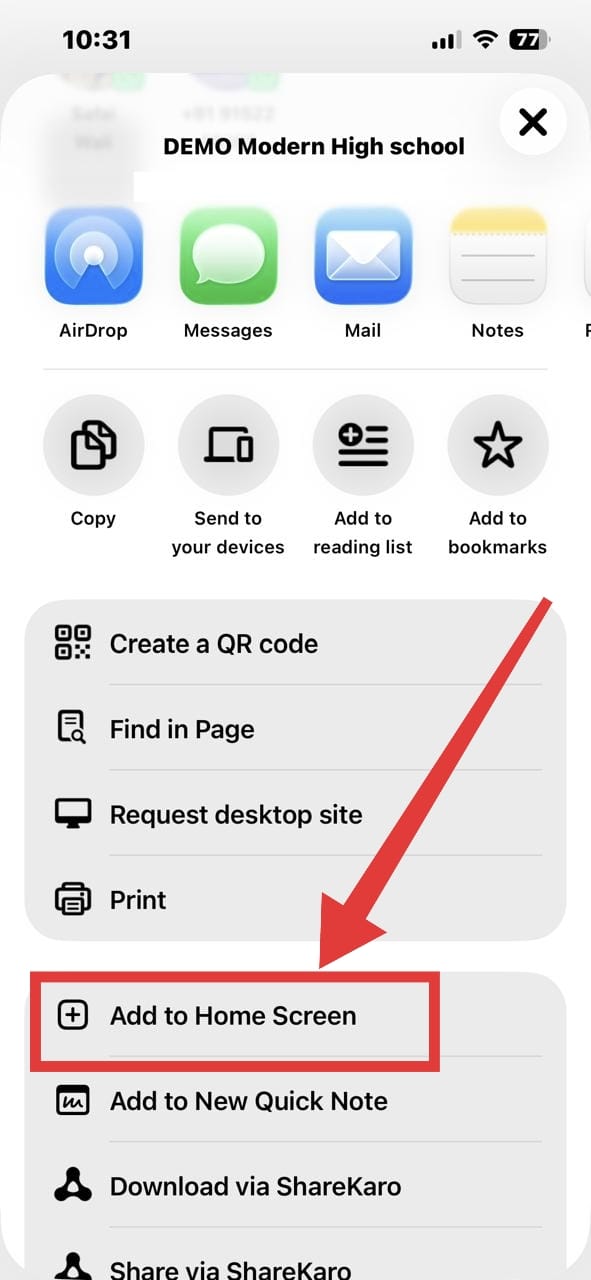
iOS Share Sheet open with Add to Home Screen option highlighted
Step 3: Customizing the Icon Name and Confirming
A setup screen will appear displaying your school’s name and high-resolution logo as the application icon. Here, you can review the details and customize the shortcut title if desired.
Verify that the configuration is correct, and then tap “Add” in the top right-hand corner of your screen. Your mobile browser will automatically configure the standalone application bundle and add it to your iOS grid.
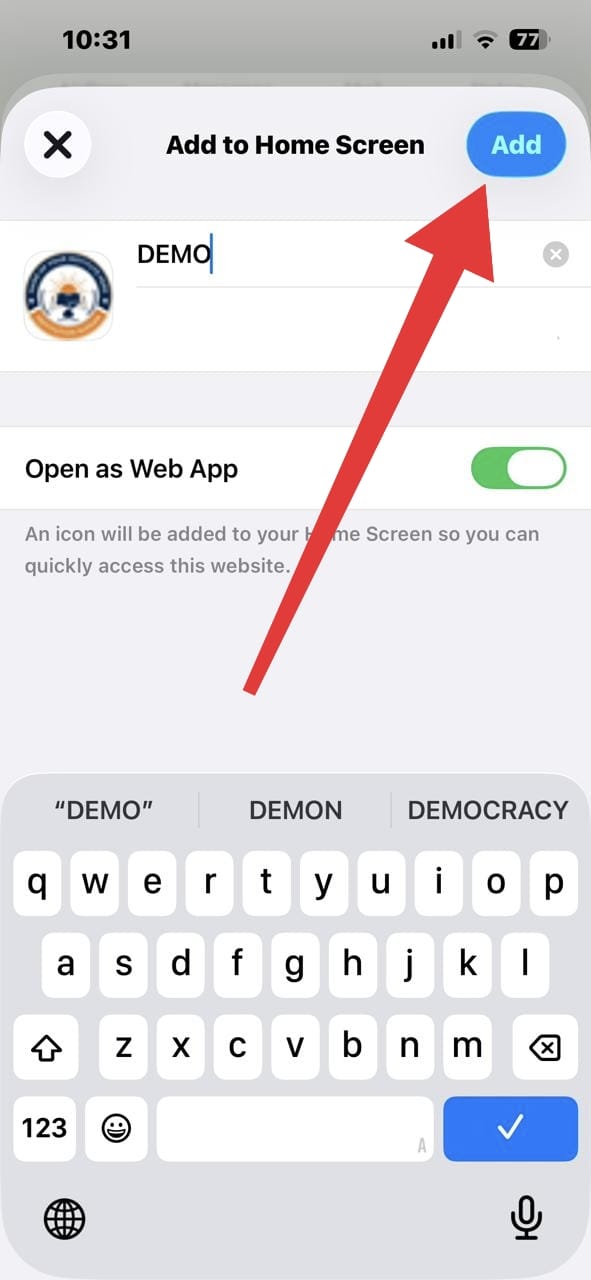
Add to Home Screen confirmation screen
Step 4: Accessing the App Directly from Your Home Screen
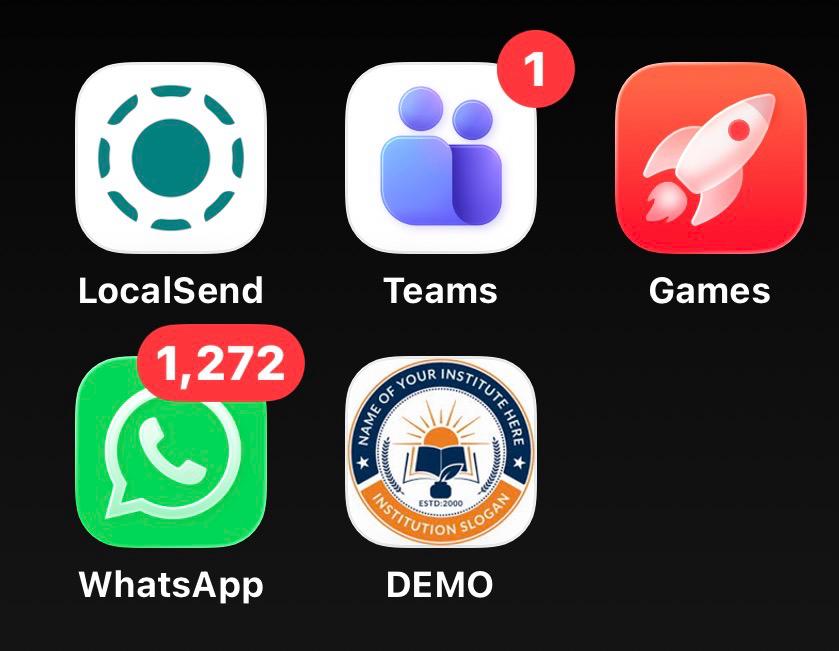
Congratulations! Your customized school app is now installed. It resides right on your iOS home screen alongside your native apps, complete with your custom school icon. Tapping this icon launches the app in standalone mode—removing the browser URL bar and controls for a fully immersive, native feel.
Step 5: Secure Role-Based Authentication
Upon launching the application, enter your verified DigiSchool credentials. The application dynamically adjusts the user interface based on who is logging in:
- Teachers access rapid attendance recorders, online exam marks publishing, and homework upload portals.
- Parents & Students log into a clean timeline showing upcoming events, digital homework, fee dues with instant digital receipts, online exam results, and notices.
This role-based design keeps the workspace distraction-free and highly optimized for everyday use.
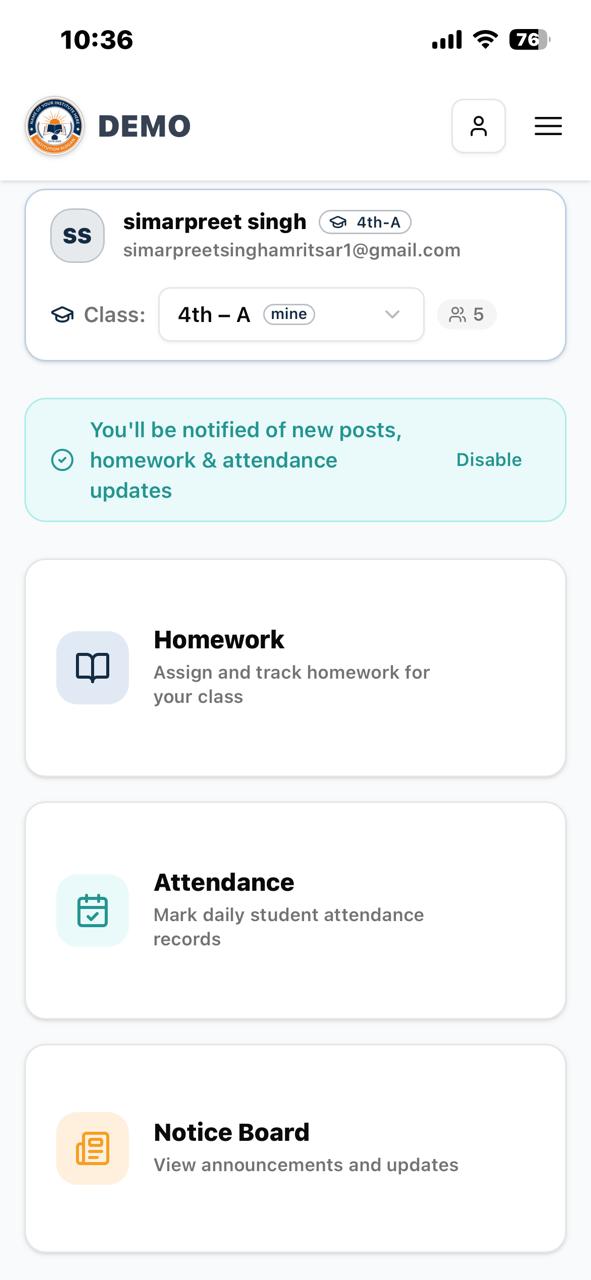
DigiSchool app dashboard showing Homework, Attendance, and Notice Board sections
Staying Updated: High-Priority iOS Lockscreen Push Alerts
Thanks to recent iOS updates, DigiSchool school applications support high-performance, system-level push notifications. When teachers assign new homework, log attendance anomalies, publish exam results, or administrators share fee reminders and holiday notices, users get instant lock screen alerts.
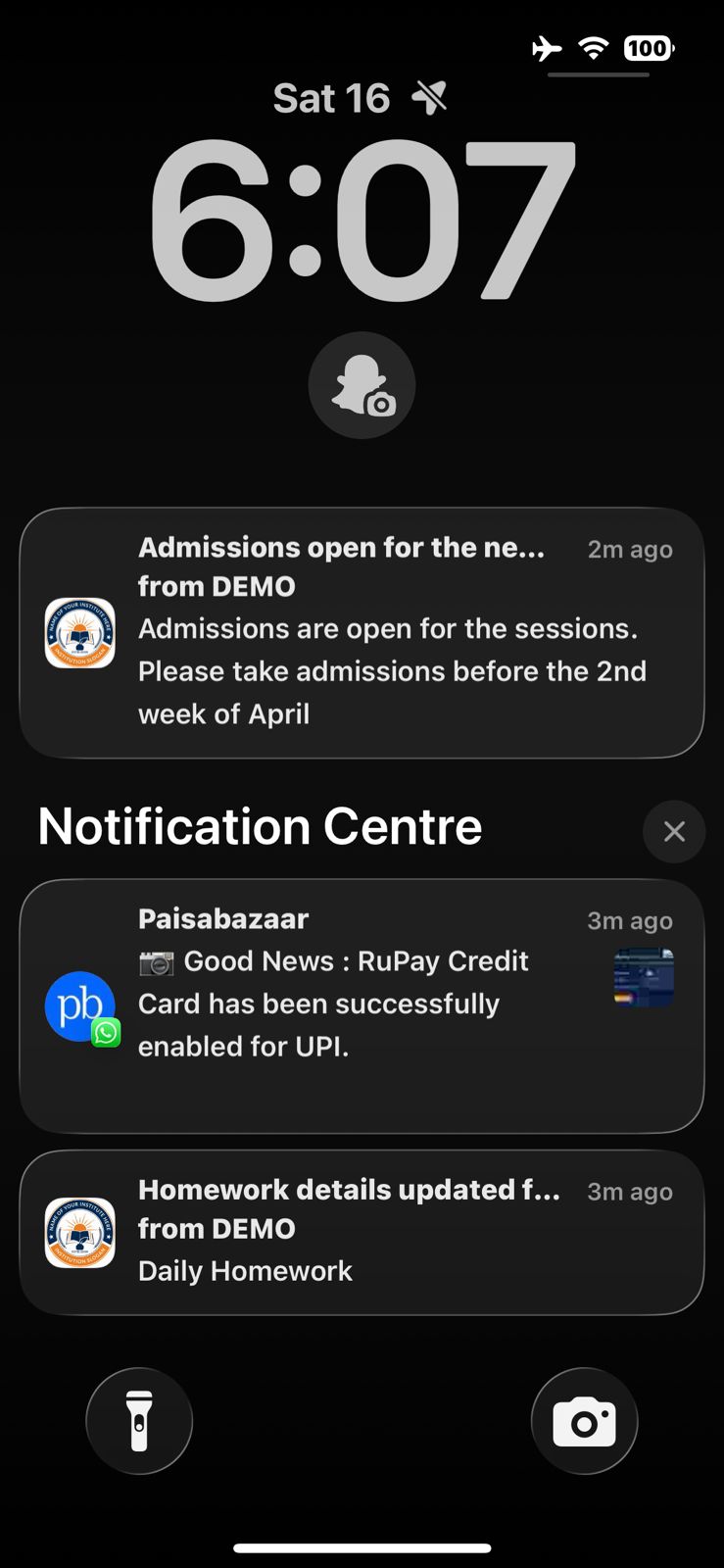
iPhone lock screen showing real-time school push notifications
No more manual checking or missing vital information. The moment a status update is published on the administrator’s dashboard, it pushes directly to the relevant user’s lock screen.
Key Benefits of the DigiSchool iOS App Experience
✨ A Premium, Branded App Experience
Your school’s name and emblem remain visible on the home screens of your entire community. This level of branding fosters trust, reinforces institutional identity, and establishes professional credibility.
🚀 High Performance & Smooth Transitions
Leveraging iOS’s advanced rendering capabilities, the app delivers quick load times and high-frame-rate navigation. The application is highly optimized to prevent screen stutter, keeping page-swipes fast and responsive.
🔔 Reliable iOS Lockscreen Alerts
By combining optimized notification protocols with iOS’s notification engine, users receive instant updates on their lock screen. Parents can keep track of assignments and urgent notifications without needing to constantly reload active web links.
📱 Instant One-Tap Access
Getting your community connected is exceptionally simple. There is no need to type long URLs or search through complex menus—one tap from the home screen opens a comprehensive dashboard.
Frequently Asked Questions (FAQ)
Q1: Will this school app consume a lot of storage on my iPhone?
Not at all! Unlike traditional heavy apps that require hundreds of megabytes of space, the DigiSchool mobile app is exceptionally lightweight. It launches instantly and uses minimal local storage, ensuring your iPhone has plenty of space for your photos and personal files.
Q2: Does this app require manual updates from the Apple App Store?
No manual updating is needed. The app updates automatically in real-time. Every time the DigiSchool engineering team rolls out a new system enhancement, UI improvement, or security patch, the app applies it instantly and silently without requiring you to download any updates.
Q3: Can multiple family members install the app on different iPhones?
Yes! There are no device limits. Every parent, student, and teacher in your school community can install their own copy of the app on their individual iPhones by simply visiting the school’s unique URL in their mobile browser and following the home screen setup steps.
Bring DigiSchool to Your iOS Community
Setting up this robust mobile app requires less than two minutes per user. By following this simple guide, your parents, teachers, and students can stay connected with minimal effort.
Not on DigiSchool yet? Start by setting up your school website: 👉 Part 1 of this series
Up next in Part 4, we will walk through the exact features and management controls available inside the DigiSchool dashboard for every type of user. Stay tuned!
Ready to get started? Visit digischool.devcase.in and launch your customized mobile experience today.
Share this post
Like this post? Share it with your network!