How to Install Your School App on Android
A complete step-by-step guide to installing your customized school mobile application on Android. Set up real-time attendance alerts, homework tracking, and school notices in a few taps.
Simarpreet Singh
Blog Author
Unlocking Seamless School Updates on Android
Managing everyday school tasks shouldn’t require complex software downloads or jumping between multiple websites. For schools, communication is key—yet parents often miss vital homework updates, and teachers face friction when trying to send direct notifications.
DigiSchool solves this problem by using advanced, highly optimized cloud-app technology. Rather than forcing parents and teachers to download heavy files from the Google Play Store, DigiSchool lets Android users install their school’s custom-branded app directly from their browser. It runs seamlessly on any Android smartphone, conserving storage space while offering rich native features—including offline access, fast loading speeds, and instant notifications.
Here is a step-by-step guide to installing the school app on your Android device in just under two minutes.
Setup Requirements for Android Devices
Before your community can install the app on their devices, your school needs a live web page powered by DigiSchool. Ensure you have an active school profile and your domain set up:
👉 How to Get a Free Website for Your School with DigiSchool
Once your school website is online, a smart install prompt will automatically appear for any Android user visiting the page.
Device Compatibility: The DigiSchool app is compatible with all Android devices running Android 8.0 or newer. For the best installation experience, we recommend using the Google Chrome browser.
Step 1: Launching Your Browser and Triggering the Install Banner
Open your Android device and launch Google Chrome (or your preferred web browser). Navigate to your school’s unique web address.
As soon as the page loads, the browser will display a smart prompt at the bottom of your screen:
📱 “Install for instant access and offline use”
To kick off the setup, simply tap the highlighted Install button on this banner.
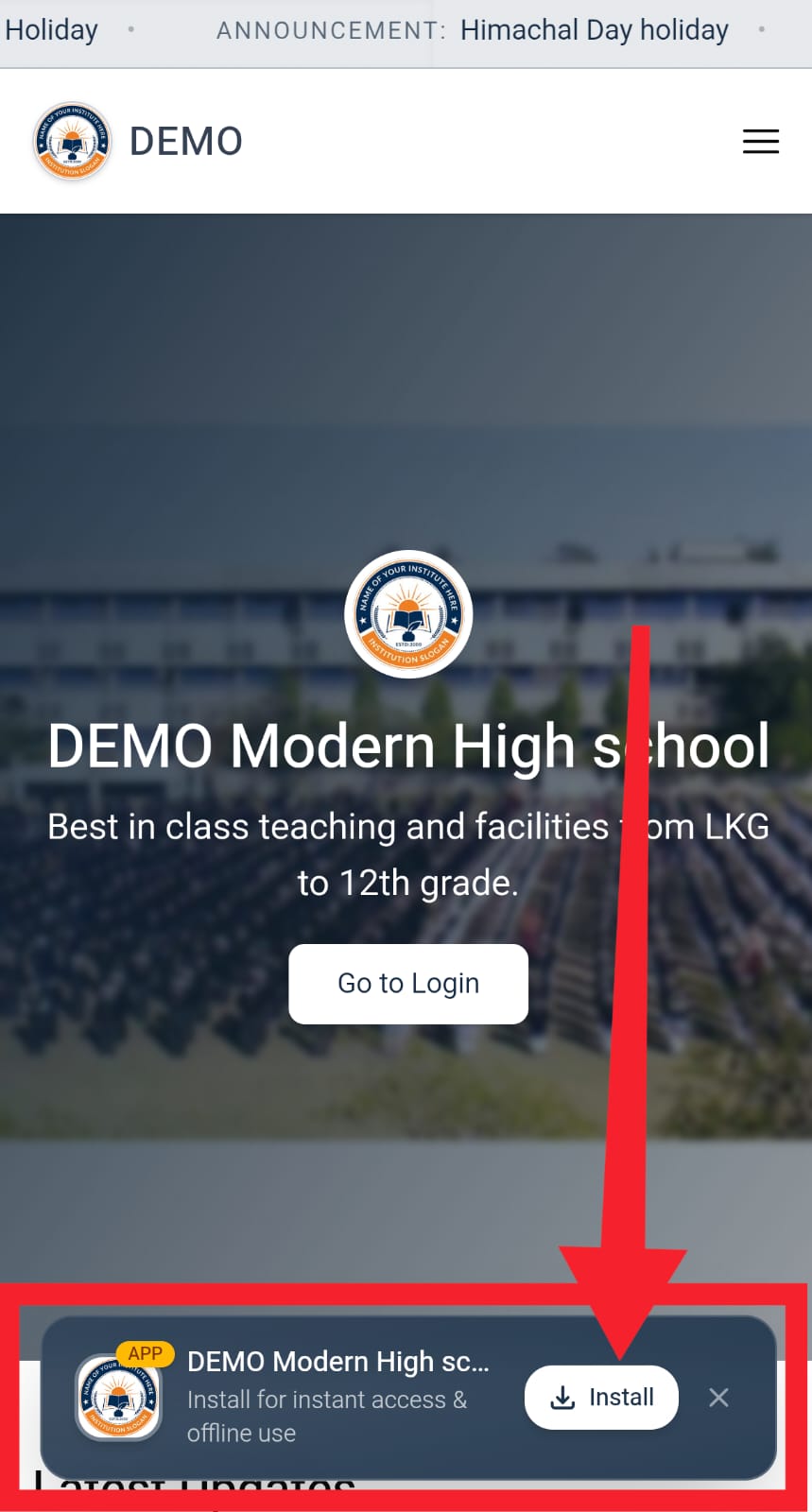
School website open on Android with the Install app banner visible
Step 2: Quick Confirmation via Chrome Prompt
After clicking the install banner, Android will display a system confirmation window. This box displays the custom school logo, web address, and a quick preview.
Tap Install to confirm your choice. The system will handle the rest in the background.
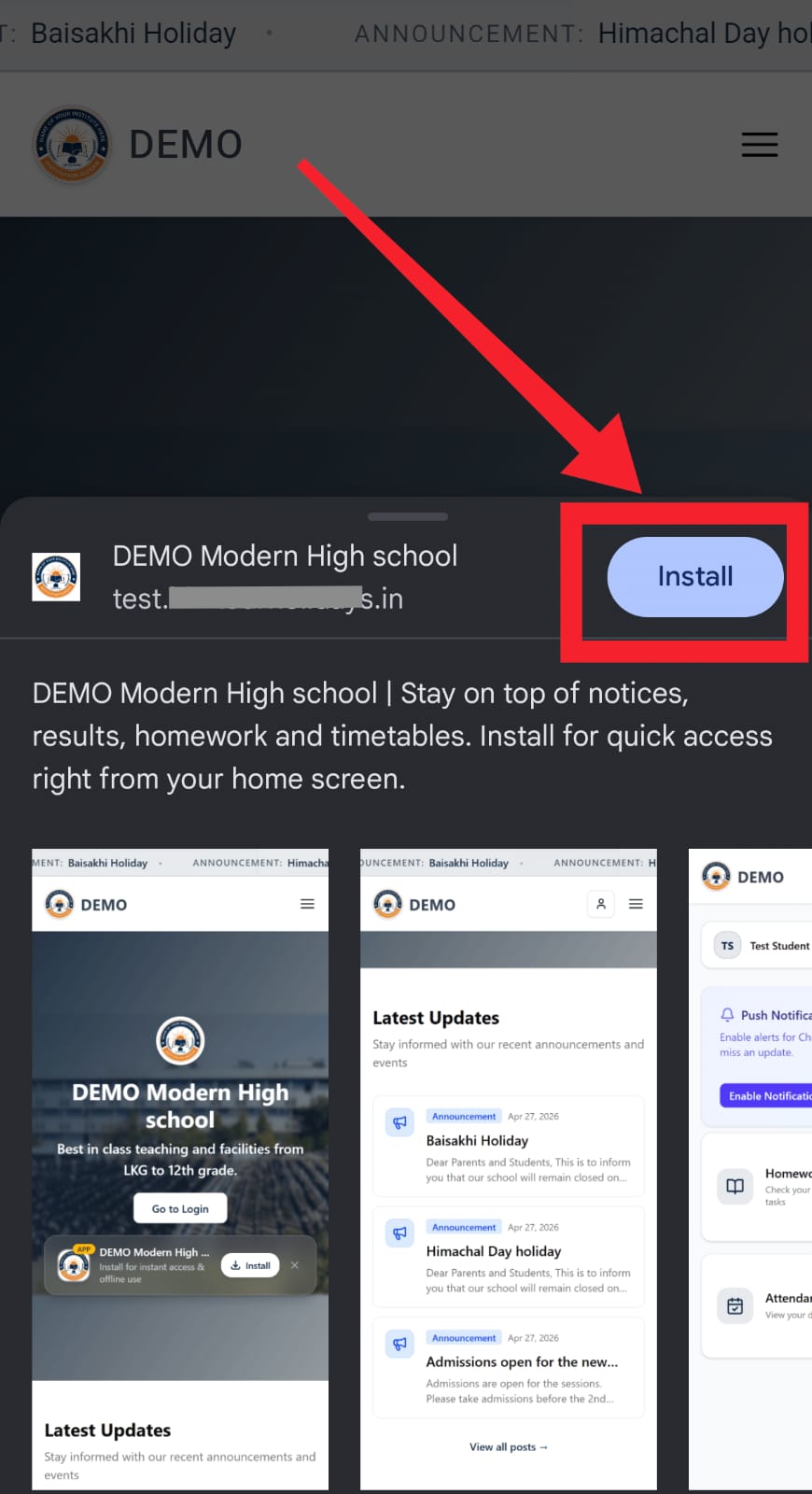
Android install confirmation popup showing school app preview
Step 3: Automatic Background Installation
While you continue browsing, Android sets up the app in the background. A brief toast notification stating “Installing…” will pop up, confirming that the process is underway. In just a few seconds, the app will be added directly to your device.
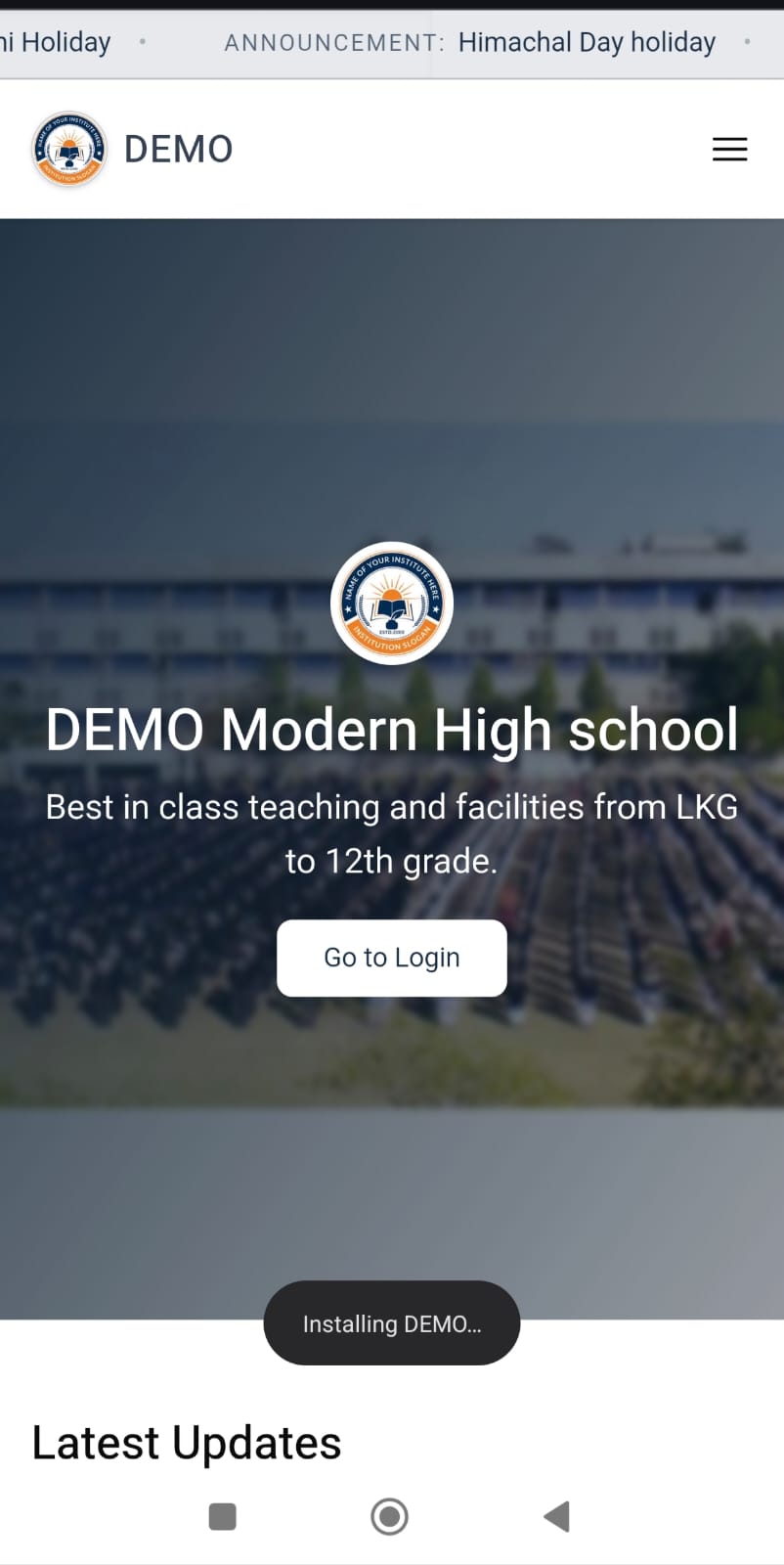
Android screen showing the Installing message
No Storage Bloat: Unlike traditional app packages, this installation requires no large APK downloads, no security bypasses, and no intrusive device permissions. It is fast, clean, and highly secure.
Step 4: Locating Your New School App in the App Drawer or Home Screen
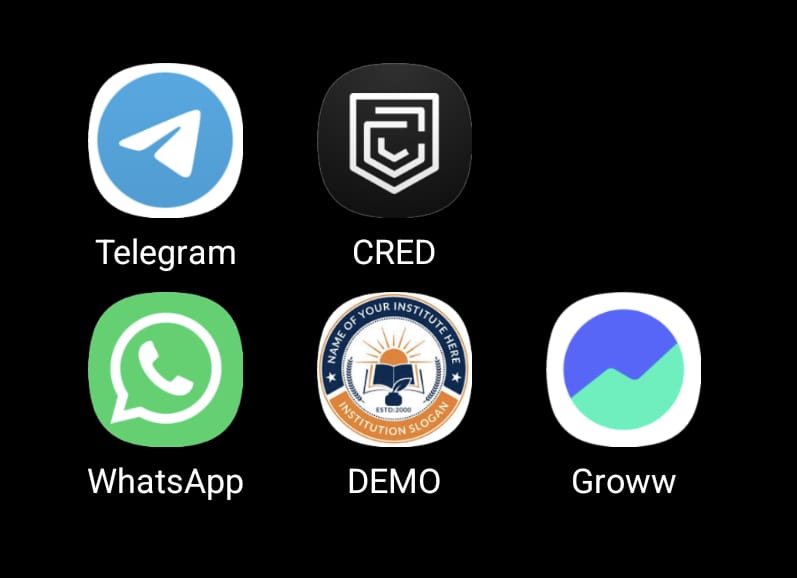
Your custom school app is now ready to use! You’ll find it sitting directly on your Android home screen and in your system’s App Drawer, featuring your school’s unique icon and name. Tapping the icon opens the platform in standalone mode, removing web address bars for a fluid, app-like experience.
Step 5: Logging In to Your Role-Tailored Portal
Open the newly installed app and enter your DigiSchool login details. The interface automatically customizes itself for you:
- Administrators & Teachers get access to quick dashboard actions, tools for managing attendance, fee collections, exam results, and interfaces for homework assignment.
- Parents & Students are greeted with a customized stream highlighting daily homework, notices, pending fee dues with instant digital receipts, and online exam results.
This targeted dashboard structure ensures everyone finds the information they need in seconds.
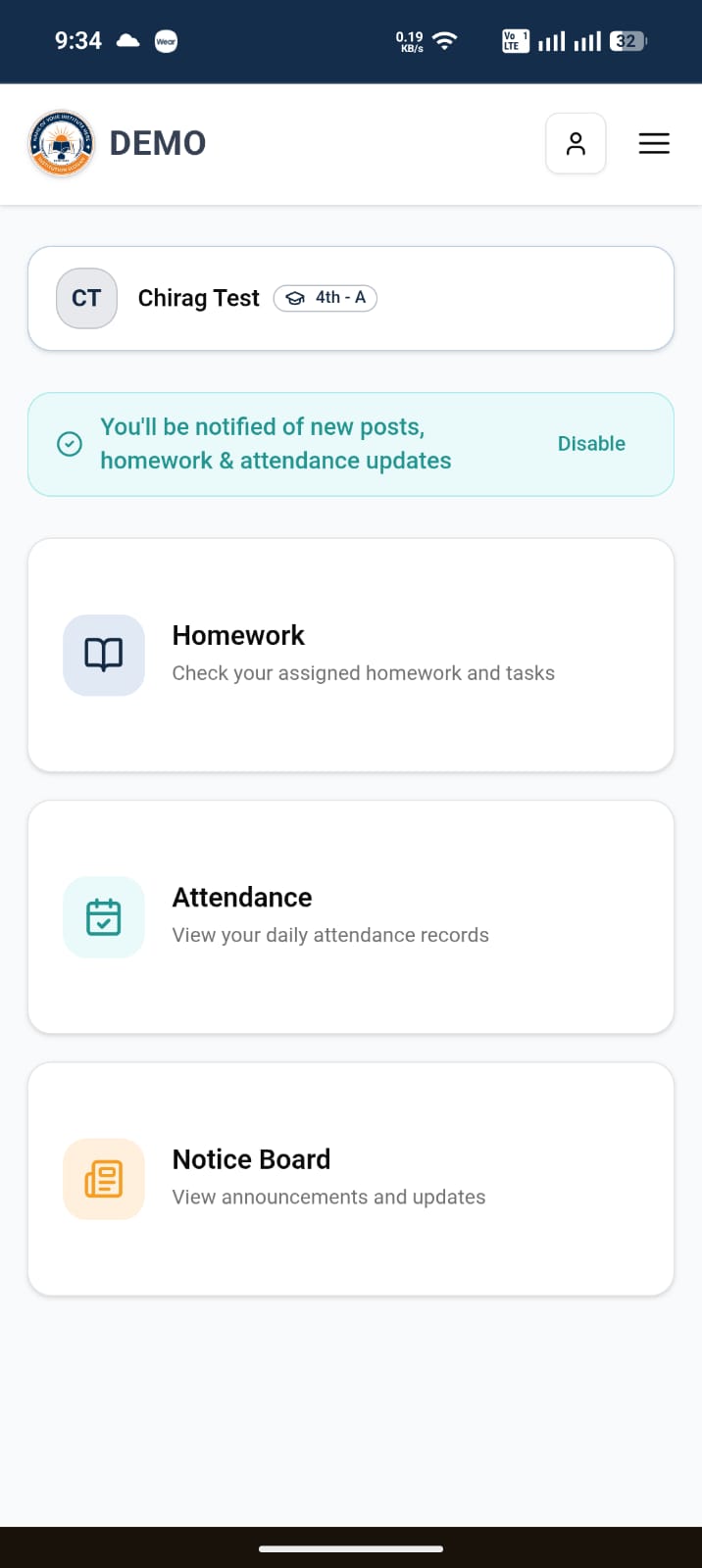
DigiSchool app dashboard on Android showing Homework, Attendance, and Notice Board sections
Never Miss a Beat: Native Android Notification Tray Alerts
Keeping up with school schedules is effortless with Android’s system-level notification integration. Every time an administrator posts an announcement or a teacher logs a homework update, a push notification lands in your Android notification shade immediately.
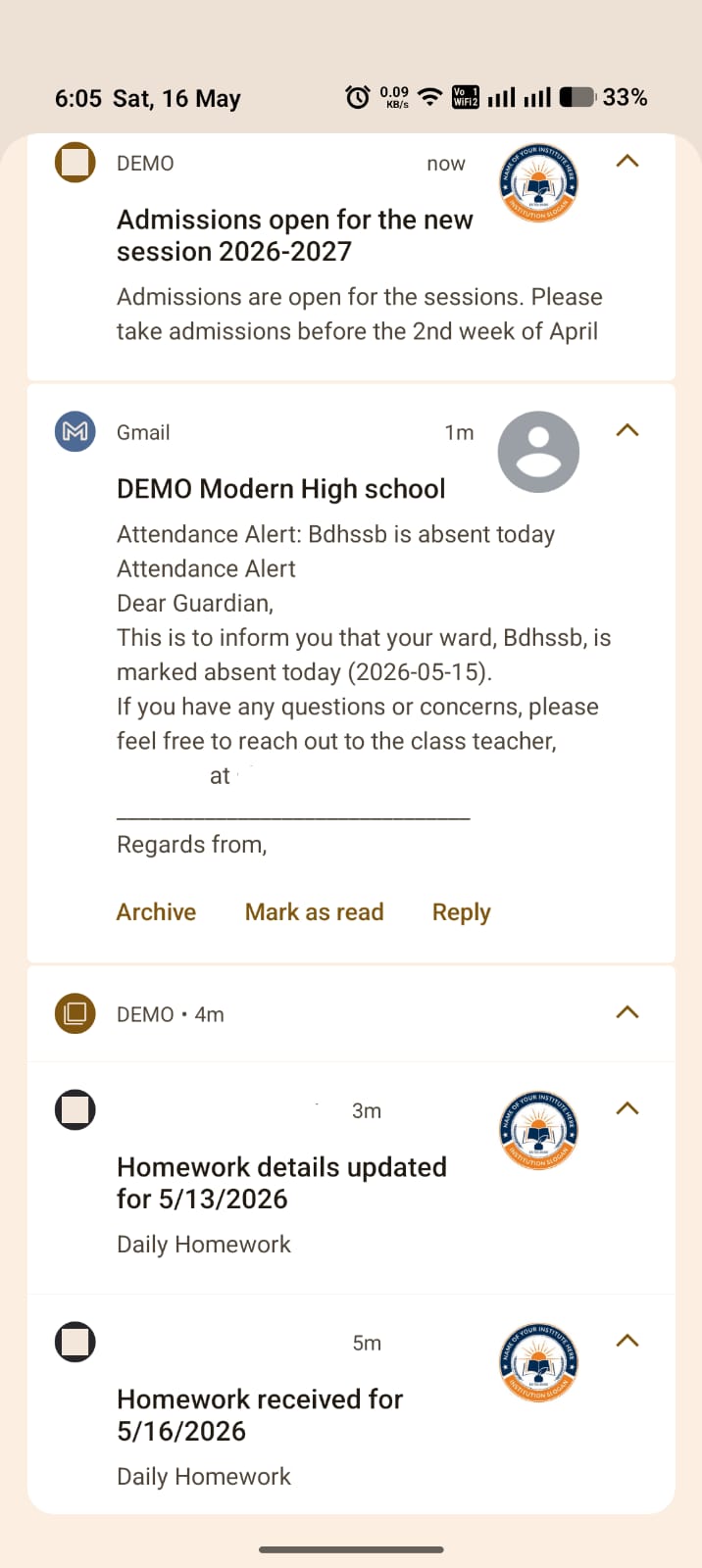
Android notification screen showing real-time school notifications
These alerts are delivered instantly in the background, keeping you updated on attendance, session announcements, and homework deadlines without needing to open the app or refresh the browser.
Why Android Users Love the DigiSchool App
🛡️ Branded Presence and Trust
The application places your school’s brand front and center. Having your school’s unique icon on parents’ home screens builds digital trust and establishes a highly professional reputation.
🔋 Highly Optimized & Low Resource Usage
Our school app is incredibly lightweight, taking up only a fraction of the storage of traditional apps. It runs efficiently across all types of Android devices, from budget-friendly smartphones to the latest flagship models.
⚡ Instant Background Sync & Alerts
Utilizing Google Chrome’s robust background services, notifications and updates are delivered instantaneously. You won’t miss important notices even if the app is closed.
📲 Seamless System Integration
The app integrates deeply with Android’s UI. It is searchable in your app list, launches in full screen, and provides a modern, fast-loading, offline-capable interface.
Frequently Asked Questions (FAQ)
Q1: Will this school app drain my Android battery or slow down system memory?
Absolutely not. The DigiSchool Android app is engineered to be exceptionally memory-friendly and battery-optimized. It runs efficiently in the background, using virtually no CPU power or active RAM until a critical real-time notification or announcement arrives.
Q2: Do I need to enable “Install from Unknown Sources” or download APK files?
No, safety and privacy are our highest priorities. You do not need to download raw files, root your device, or bypass any built-in Android safety configurations. The installation occurs directly and securely via Google Chrome with a single click.
Q3: Can teachers use this app to perform classroom management tasks on the go?
Yes! The app offers a robust, mobile-optimized administration dashboard. Teachers can mark student attendance, record grades, write and assign homework, and post notice board updates directly from their classrooms or while on the go.
Launch DigiSchool on Android Today
Enabling a dedicated app experience for your Android users is simple. By sharing this quick guide, your parents and staff can have your school app installed on their phones in less than two minutes.
If your website isn’t online yet, start with the first step here: 👉 Part 1 of this series
Up next in Part 3, we will do a deep dive into the school management tools and dashboard features available within the DigiSchool app. Don’t miss it!
Ready to simplify your school’s communications? Head to digischool.devcase.in and launch your school app today.
Share this post
Like this post? Share it with your network!